Step 1: Export the MPP file to MPX format in MSP
Microsoft Project versions up to MSP 2003 natively supported the MPX format, but newer versions (MSP 2010, 2013, 2016, 2019 and later) no longer do.
So, to convert an MPP file to MPX, you will need to use a third-party conversion tool.
Step 2: Use an MPP to MPX converter
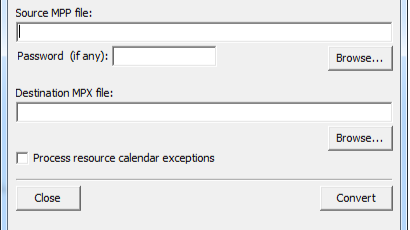
Given that recent versions of MSP no longer support the MPX format, an external tool is necessary. You can download a free MPP to MPX converter to perform this operation.
Download the MPP to MPX conversion tool – 🔗 MppToMpx
- Install the converter by following the on-screen instructions.
- Open the tool and select the file .MPP to convert.
- Choose MPX as output format, then click on Convert.
- Save the file .MPX in a known location.
Step 3: Import the MPX file into Primavera P6
Once the file has been converted to MPX format, follow these steps in Primavera P6:
- Open Primavera P6 and go to File → Import
- Select MPX as an import format
- Cliquez sur Next and locate the converted MPX file
- Choose the import destination (existing project or new project)
- Cliquez sur Finish to finalise the import
Troubleshooting & Best Practices
✅ Check the data mapping After importing, ensure that logical activities, resources, and relationships have been transferred correctly.
✅ Correct the calendars MSP and P6 use different calendars – manual adjustments may be required in Primavera P6
✅ Validate constraints & logic Certain MSP constraints may not be imported correctly – check the schedule logic after import
✅ Alternative method : if the MPX format is not available, export MSP in XML, then import it into Primavera P6
Conclusion
The conversion of Microsoft Project (.MPP) files to the MPX format is a key step when migrating to Primavera P6.
Using a dedicated conversion tool helps preserve data integrity and limit compatibility issues.
👉 Download the tool MppToMpx from now on to optimise your planning workflow.

 Français
  English (UK)
 Español
 Italiano
 Deutsch
 Nederlands